Changelog.
What changed, when, and what it means for you. Newest first; every entry is something that shipped.
Week of 12 October
29 changes
Canvas, Classroom, Moodle and your task apps, connected
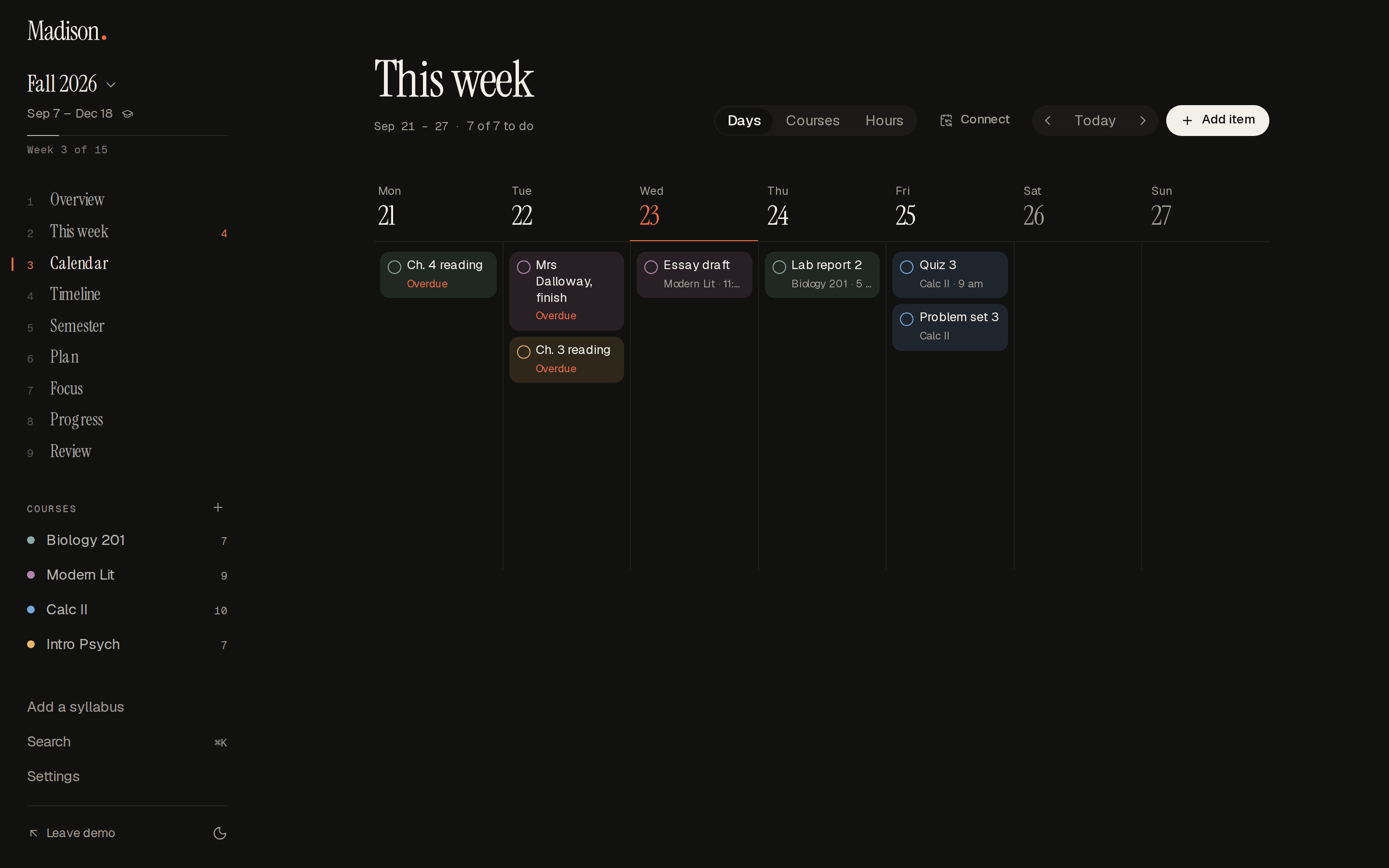
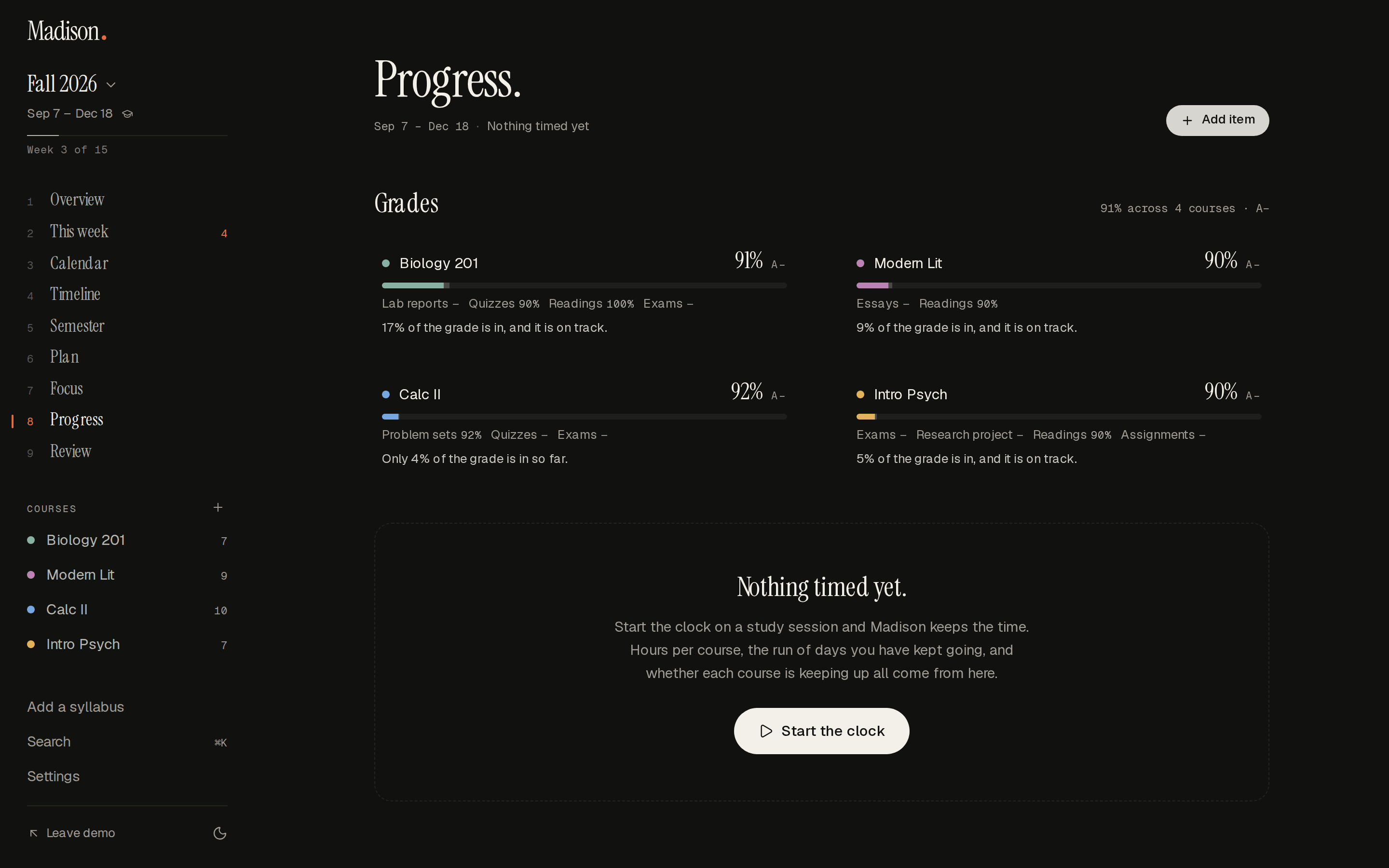
Settings now has Connections. Connect Canvas, Google Classroom or Moodle once, say which course is which, and every assignment, quiz and discussion arrives with its points and grade; tick one off in Madison and it is marked done in Canvas. When a teacher moves a date it waits on your overview for a yes. Notion, Todoist and iCloud Calendar connect too, and at work so do Google Tasks, Microsoft To Do, GitHub, Linear and Slack, both ways. Leaving TickTick or MyStudyLife? Bring its export in. Schools can add Madison to their LMS and publish a syllabus straight into it.
Group projects, a room to study in, and dates your class agrees on
A study group can now split a shared assignment into steps, give each to someone with a deadline of the group's own, and see it come together: your steps appear in your own plan, and ticking one off there tells the group. Spot a wrong date? When three of you agree (or whoever started the group says so), everyone is asked about the new date in their planner. Open the group's study room to see who's working now, run one Pomodoro timer for all of you, and share a study-with-me link. Join the weekly league if you like: the top three get a laurel for their desk pet.
Let someone read along, and course pages anyone can start from
Invite a parent, an advisor or a coach to see your week and what's coming, live and by email on Sundays, with grades and notes only if you say so. People reading your shared link can leave a comment on an item, and you hear about it in Madison. Share a course's dates to its public page at your school, so classmates can use the same schedule in one click and correct it together; instructors can publish the syllabus there, and a date they move is offered to everyone who used it.
Professional: slots that fill themselves, a booking link, goals and time reports
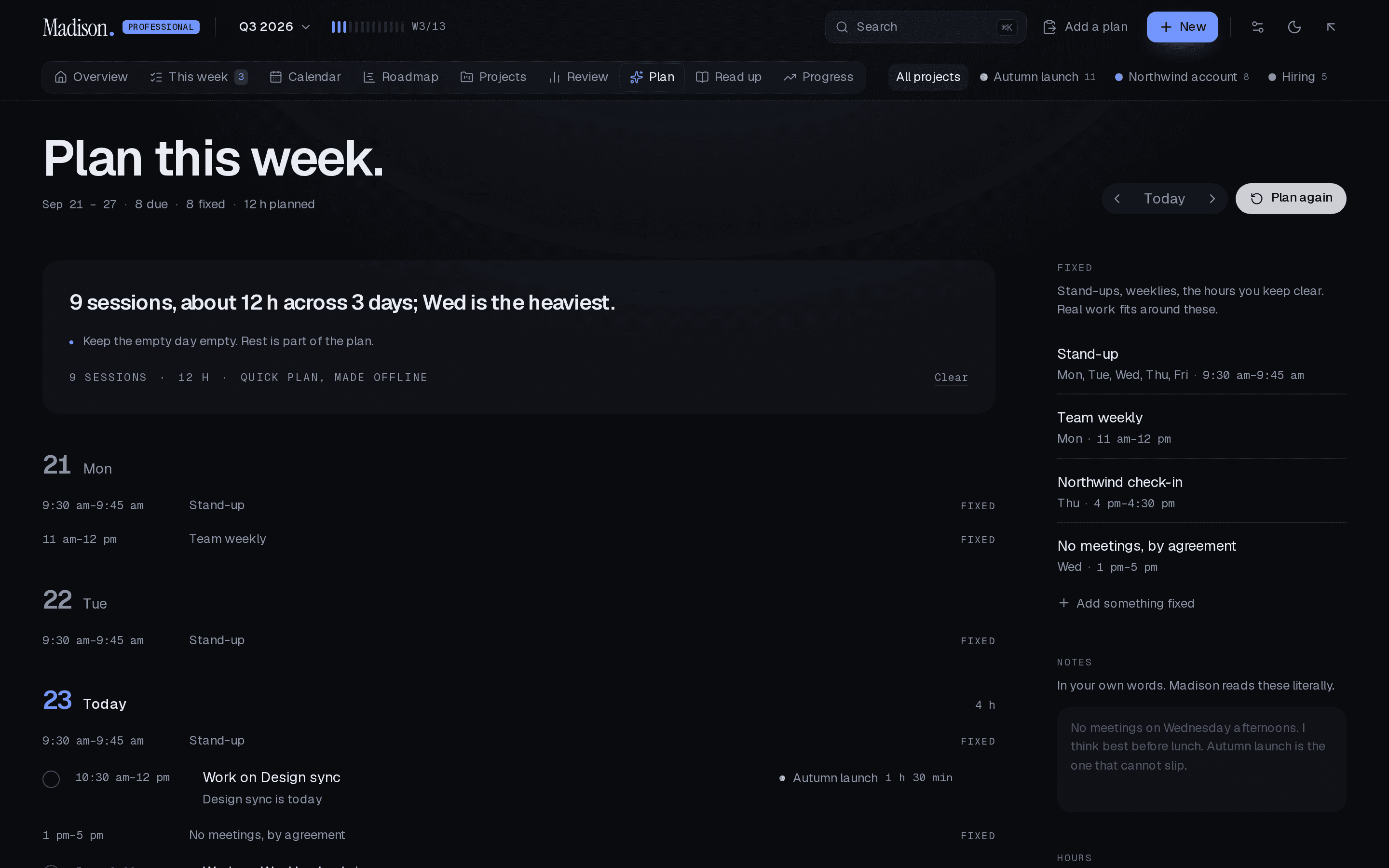
Draw your week once (deep work, admin, meetings only) and Madison puts every task into a slot of its kind before it is due, then moves it the moment a meeting lands on it, saying what moved and why, with Undo. Share a booking link that offers only the times your plan and calendar leave free, never over deep work, in the booker's own time zone; what is booked lands in your plan and your calendar. Turn a meeting's notes into action items with owners and dates, set the quarter's objectives and watch key results roll up as the work gets done, report time by project and client with billable hours apart (CSV or a printable page), give each client a page that shows milestones and nothing else, and let your team see how full everyone's weeks are, if each person chooses to share.
One focus timer on every device, and Madison on the Windows widgets board
Start a focus session in the planner, from a Shortcut or through the API, and every device sees the same one: pause it on one and it pauses on all, stop it anywhere and the time is logged once. On Windows 11, install Madison from Edge and add Today, Next up and Focus to the Widgets board, then tick things off and start or stop a session from there. New Shortcuts recipes give you today's agenda as a morning notification, log study time and add an exam by voice. On an iPhone, notifications switched on from today arrive even when Madison has been asleep a while, without a word of your plan passing through Apple. And a new page, Get the apps, lists everywhere Madison is, and honestly what is still on its way: a browser extension for your course pages, iPhone and Android apps with lock screen widgets, and a timer in your menu bar.
Gentle mode: one thing at a time, and nothing in red
Turn on gentle mode in Settings and Now shows just the next thing, with a disc of colour that shrinks as its time goes, a "Just start, 5 minutes" button, a soft chime two minutes before the end, and when you'll be done today. Anything you missed moves to today quietly, with a note and an Undo, and nothing shouts in red. Too much on? Make today smaller keeps the three that matter and moves the rest, and Madison can draft the email asking for an extension. See the day as blocks, add routines (sleep, meals, an hour at the gym any time between 6 and 9) that plans keep clear, have anything read aloud, dictate into quick add and Ask, and set letter, word and line spacing, bigger text, a reading ruler and high contrast.
Forty-five Studio kits, each a whole world, and things to collect by keeping up
Studio's templates are now kits: a dashboard laid out for a laptop and a phone, a pack of stickers and washi tape drawn for it, photos that belong together, paired type, its own light and dark, a sound and a feel. Twenty-eight are new, from Study With Me and Glacier to Hanok Morning, Desi Mehfil and eight made for work, and the first seventeen were remade (Coquette is now Ribbon & Lace, Dark academia is Marginalia, Ocean is Ocean at Dusk, Clean girl is Linen Shore; links to the old names still work). Every kit gives you a desktop wallpaper, a lock screen with the clock's space kept clear, a story card, a video-call background, an app icon and a printable sticker sheet, made on your device. Clear a week and a pen pal's stamp goes in your album, with a secret sticker now and then; a week of days with something done gets your pet a laurel, and each month brings a small event with a kit, a sticker and an outfit: November is Burrowcore. Nothing is ever sold by chance.
Madison plans with you, and mends the plan when the week goes sideways
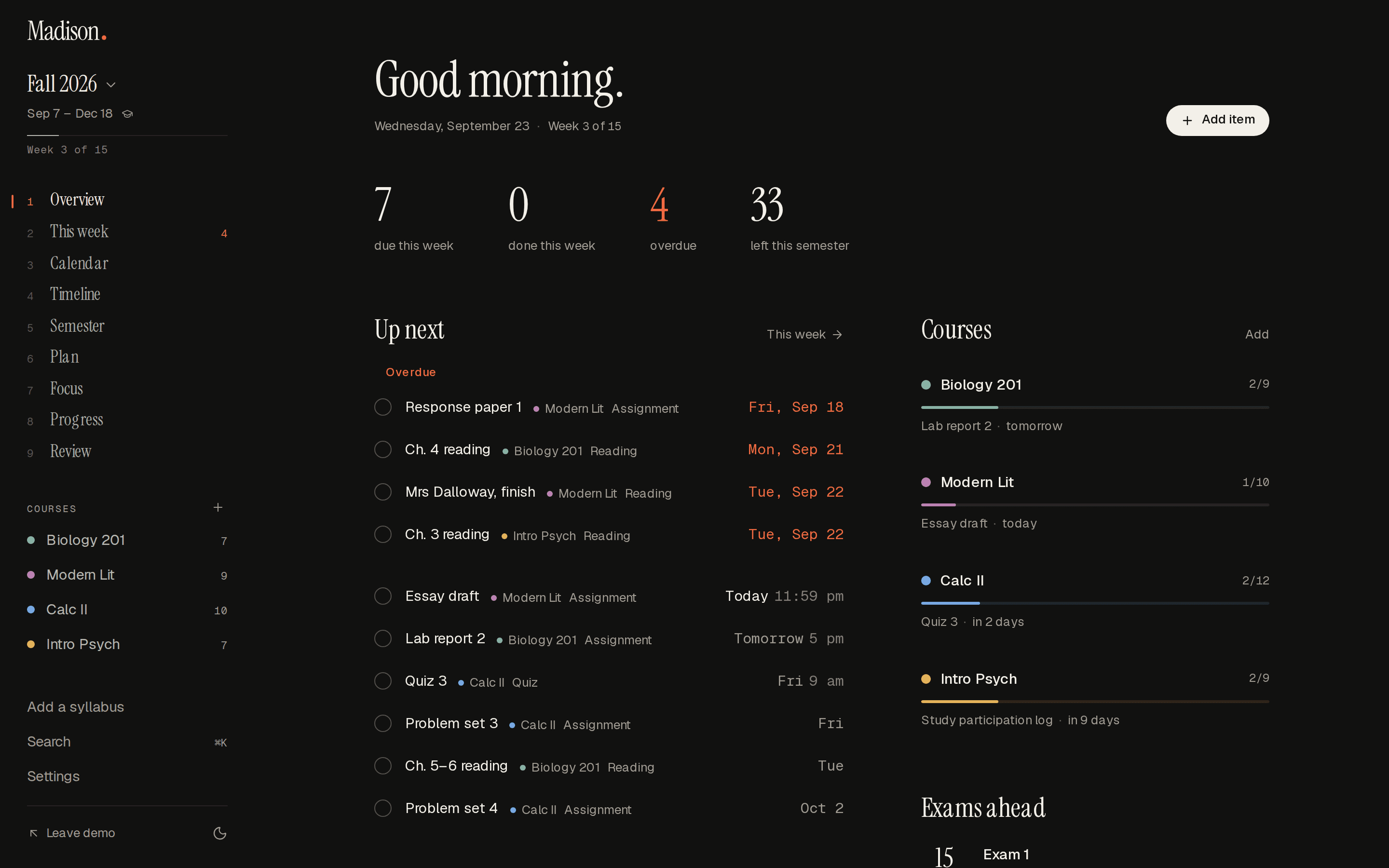
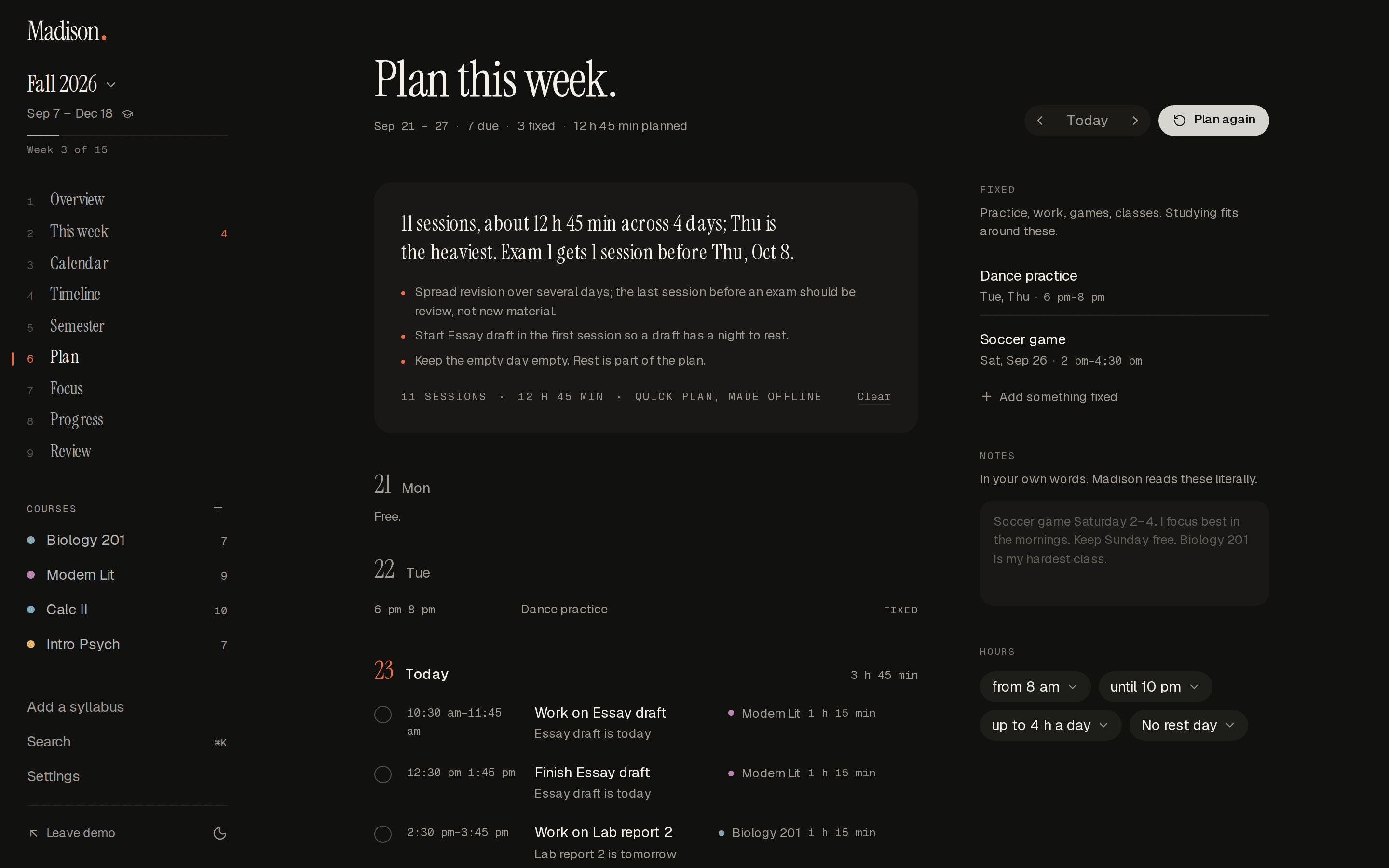
Miss a session, or have something land on top of one, and Plan puts it back before its deadline at one of your best hours, then shows what moved and why, with Undo. The overview now shows the weeks ahead and warns you two or three weeks before a crunch, while there is still time to start early. Break any item into steps with estimates, count milestones back from a due date, get spaced revision before an exam, order Up next by what matters most to your grade, plan the morning and shut the evening down in two minutes each, say everything on your mind and keep it as items, and ask Madison to change your plan: "I'm sick Thursday, push everything". It shows the changes first and makes them only when you confirm.
Madison in Claude and ChatGPT, and an API of your own
Add Madison to Claude or ChatGPT as a connector and ask what's due, move a deadline, plan your week or log an hour of study, in plain words. Builders get a REST API with tokens you make in Settings, signed webhooks whenever anything changes, and iPhone Shortcuts recipes on the new developers page.
Forward an email, and see when a date changes
Forward a teacher's email to your own Madison address and the dates in it wait on your overview to accept, edit or dismiss. Read a syllabus again, or refresh a class calendar, and anything that moved shows as "Essay 2: Oct 3 → Oct 10" with one tap to accept or keep, instead of quietly changing or appearing twice.
Restore points, and your plan in any format
Your account keeps a month of restore points, one a day and one before every import, and putting one back is a single click you can undo. Export a spreadsheet, a plain document, every term's calendar or all of it in one zip, and have a backup emailed to you every week.
Two-step sign-in, passkeys, and Sign in with Google
Turn on two-step sign-in in Settings and signing in also asks for a code from an authenticator app, with ten recovery codes in case the phone goes missing. Or add a passkey and sign in with your face, fingerprint or screen lock instead of a password. Sign in with Google, and see every device you're signed in on, with a Sign out for each.
See where every date came from
When Madison reads a syllabus or a brief, each date it finds now shows the sentence it came from and how sure it is. Anything it had to guess is marked “check this” and left unticked, so a wrong date never slips in unnoticed.
A status page, and a trust centre
Madison now has a public status page with ninety days of checks and every incident written up, and a trust centre that says who handles your data, exactly what is sent to Claude and when (never for training), how long anything is kept, and where Madison stands on student privacy. Backups on your device moved somewhere roomier, so a big term never crowds your plan out.
Flashcards that know when you are about to forget
Study has decks per course, written for you from a study guide, your notes, a file or a photo of them, or by hand. Review with space and 1 to 4 (or a tap and a swipe on a phone), and each card comes back just before it would slip, scheduled with FSRS. The overview says how many are due and how long they take, and your week's plan makes room for them.
Practice quizzes, and answers with the page they came from
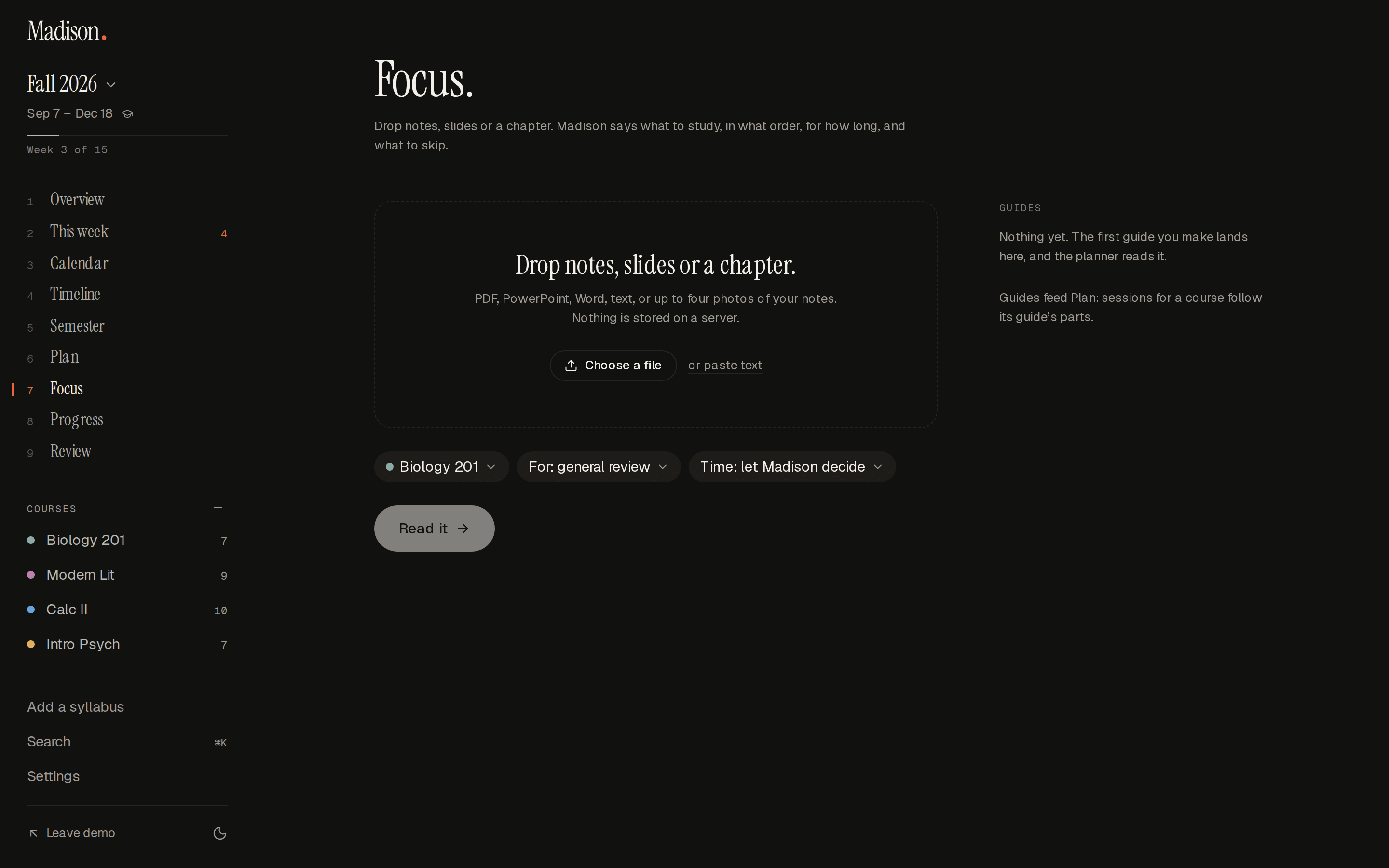
Make a practice quiz or a mock exam from your own material, marked with the reasoning, and see on each course page which topics are shaky; the weak ones become exam-prep sessions. Keep a course's notes and readings in its library and ask them questions: every answer names the file and the page.
Lectures, citations and exam days
Transcribe a lecture as it happens, or paste one in, and get a summary, cards and the deadlines that were said out loud. Paste a DOI, an ISBN or a link for a reference in APA, MLA or Chicago, kept with the essay it is for. And every exam gets a card with the room, what to bring, the deck to run through last, and a reminder when it is time to leave.
A creator programme
Make study videos or planner templates? Join from Settings and be paid 30% of what the people you send pay for their first year, monthly through Stripe once it reaches $25. Your invite link and your shared Studio setups both count.
Put your setup in the gallery, and see who made it theirs
Send your Studio setup to the public gallery with a title and a name to be credited as: the design goes, never your plan, and your photos only if you say so. Browse what others made by what's trending, newest or most remixed, try any of them live, and see in Studio how many people have used yours.
Madison for a whole class, school or club
A school, a department or a club can now pay for seats, and everybody in it gets Madison free: join with your school email, a code or an invitation, and see it in Settings as your plan. Whoever runs it sees who has a seat, never what anybody plans. From $2 a seat a month, on the new page for schools.
Madison in Google Calendar and Outlook, both ways
Connect your Google or Outlook account and Madison keeps a calendar of its own there, with everything still to do this term and your fixed hours each week. Drag something to Thursday on your phone's calendar and it moves in Madison too; tick it off in Madison and it leaves your calendar. Your class timetable can show as busy, so your plan fits around it.
Give someone a semester, and collect seasonal stickers
Buy a semester of Madison for a friend, a son or a daughter, with or without an account: you get a code, a card to print with your message on it, and a link to send. And Studio now has seasonal sticker drops, starting with Finals week and Autumn: every drop comes with Studio, or keep one for a couple of dollars.
Feel it when you finish something
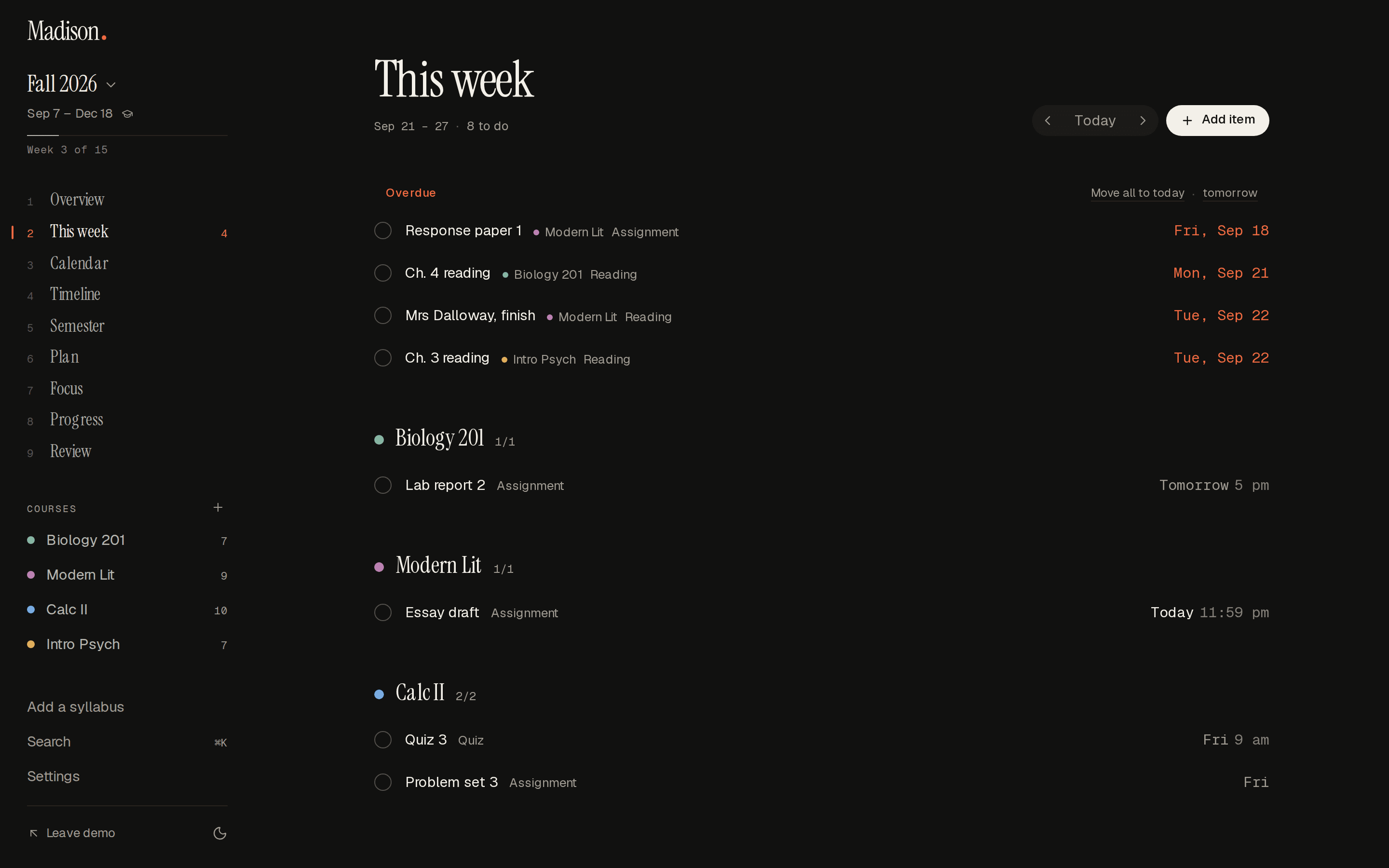
A tick now pops and lingers before the row goes, with Undo on every change (and Ctrl or ⌘ Z). Quick add shows what it understood as you type and where it put the result. Edit an item in a side panel that saves as you go, with a checklist and its own reminder.
A month view, drag to reschedule, and a calendar that fits a phone
Drag anything to another day on the week or the month, drag down the hours to block out time, and press T or M to move a row to today or tomorrow. On a phone the calendar is one day at a time with a picker along the top.
Your term, wrapped, and a streak that forgives
See your term as a story you can save and share: hours studied, the week you survived, the course that took the most of you. Keep a streak with two freezes a month and exam days that never break it, watch your desk pet earn a scarf and a beret, and study in a full-screen focus mode with rain or café sound.
Bring your friends and your class
Send a friend your link and you both get a month. Each study group has a join page and a QR code for the whiteboard. Put today's plan on your lock screen every morning with one iPhone Shortcut.
Make the planner beautiful with Madison Studio
Put your photos behind it, arrange the overview as a dashboard, and cover it in stickers, tape and words. Start from one of seventeen hand-made templates, pick a handwriting or bubbly face, and choose how a tick feels, down to the sound and a desk pet who notices. Share a link to your setup; it shows the design, never your plan.
Call your courses what you call them
Give every course an emoji, a colour and the nickname you actually use, in the order you think of them. Rename the kinds of item too, and have the overview greet you with your own lines.
Choose how your planner looks
Pick the paper, the one colour, the type, the corners and the course colours, or put a photo of your own behind it all. Twelve looks to start from, chosen once and carried to every device you log in on.
Week of 5 October
2 changes
Try everything free, and keep your plan whatever you decide
Every new account starts with a free trial with everything on and no card. Your address is confirmed with one link, and the Terms and Privacy pages now say plainly who runs Madison, what paying buys and what happens to your plan if you stop.
Edit on two devices without losing either
If your laptop and your phone both changed the plan, Madison now merges the two instead of keeping only one.
Week of 14 September
14 changes
Get push notifications that carry nothing about you
A reminder arrives with no content attached; your device asks Madison what to say. Nothing about your week passes through a push service.
Bring your Canvas or Moodle calendar in, and send yours out
Read a Canvas, Moodle, Blackboard or Google calendar into the planner, and subscribe to yours from Google, Apple or Outlook through one private address.
Review your week every Sunday, and plan with a study group
A short review of the week just gone and the one coming, written as sentences. Read a syllabus once and share it as a calendar the whole group can follow.
Hand someone a read-only link
Every course has a page of its own, and you can share a read-only view of the term that stops working the moment you turn the link off.
Ask questions about your own semester
Type a question into search and the answer is the top row. Ask Madison what is due before an exam and it offers to do something about it, with an undo.
Undo a delete for thirty days, and open the planner offline
Anything you delete waits in Recently deleted for thirty days, a daily copy of everything is kept five days deep, and any page you have opened works without a network.
Get a reminder only when something is due
The week ahead on Sunday and what is due tomorrow, only on days when something is, at the hour you choose. Off until you switch it on.
Know what you need on the final
Put each course's weights in once, tick marks off as they come back, and Madison works out your running grade and what the rest has to be, dropping what the syllabus drops.
Time your studying, and plan the week around your life
Put shifts and practice in as fixed, and Plan fits study sessions around them, explaining each choice. The timer keeps honest time, so the plan learns how long things really take.
Move a pile of things at once
Pick rows with the keyboard and move, tick or reschedule them together, with an undo. On a phone, swipe right to tick and left to reschedule.
See the week by the hour
The week as a timetable with real hours, and repeating items as a series you can move or skip one of.
Your plan on every device
Make a free account and your plan follows you to your laptop, your phone and anywhere else you log in. Reset a password or delete the account from Settings.
Madison Professional, for a quarter of projects
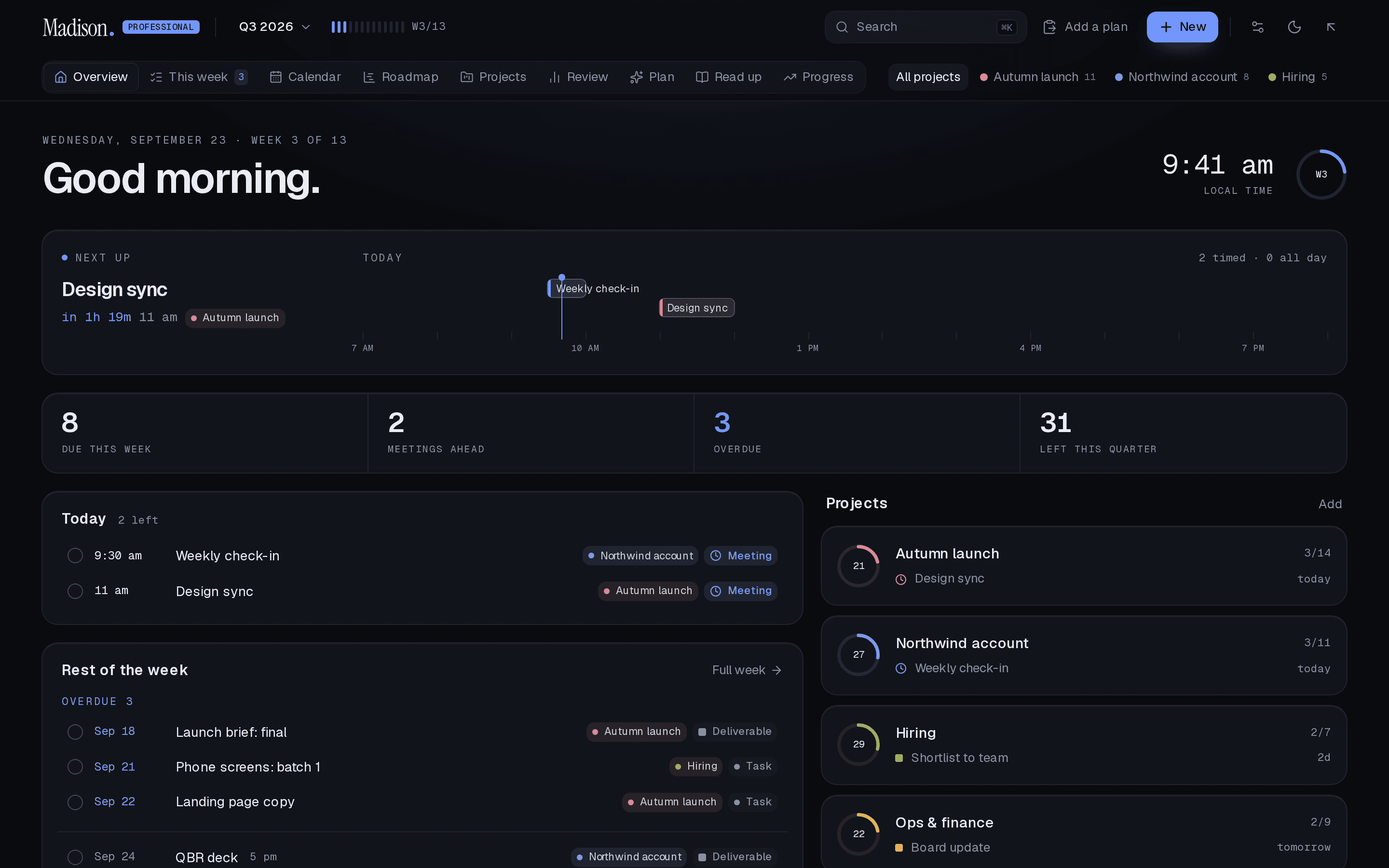
Drop in a brief or a kickoff email and get an agenda for the week, a calendar with real meeting lengths and the quarter as a roadmap. Separate from the student planner, with its own data and price.
Madison opens: your semester from your syllabi
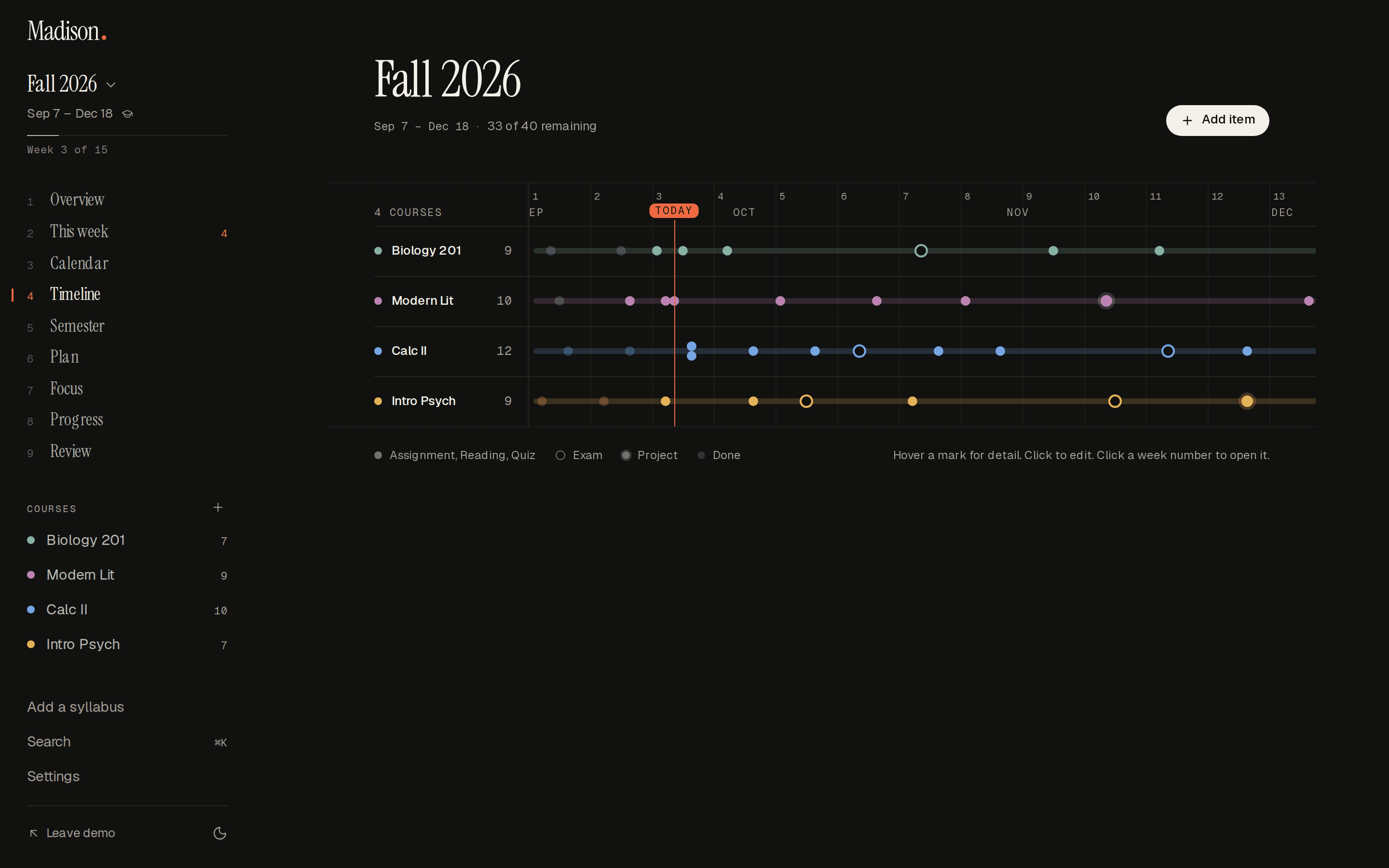
Paste or drop in a syllabus and every assignment, reading, quiz and exam lands on one page, on a timeline you can actually read.